
1. Migration to Linux
- Migration to Linux
- System configuration
- Calculate Directory Server
- Calculate Linux Desktop
- Windows workstation
- Working with a Windows terminal server
System configuration
With just two packages, calculate-client and calculate-server, you can create a heterogeneous network, consisting of Windows and Linux clients. For maximum efficiency, use the latest version of Calculate Directory Server with pre-installed calculate-server and Calculate Linux Desktop including calculate-client togethter with all the necessary packages.
Calculate Directory Server
Installation and configuration of the domain controller.- Download Calculate Directory Server LiveCD and burn it to a CD.
- Boot from the the CD. Now you can test all features of the system and install it on your hard drive.
- Configure the network.
- Configure services such as the Samba server.
- Add new users.
- Set passwords for the users client and admin; this is requires for joining Windows and Linux clients to the domain, respectively:
cl-passwd --smb client samba
cl-passwd --smb admin  samba
- Configure using distfiles by domain clients
cl-groupadd --gid 250 -f portage unix
cl-usermod -a portage client unix
chmod 0775 /var/calculate/remote
chmod -R 2775 /var/calculate/remote/distfiles
chown -R root:portage /var/calculate/remote/distfiles
Calculate Linux Desktop
Installing Linux clients.- Download Calculate Linux Desktop LiveDVD and burn it to a DVD.
- Boot from the LiveDVD. Now you can test all features of the system and install it.
- Join the computer to Calculate Directory Server domain.
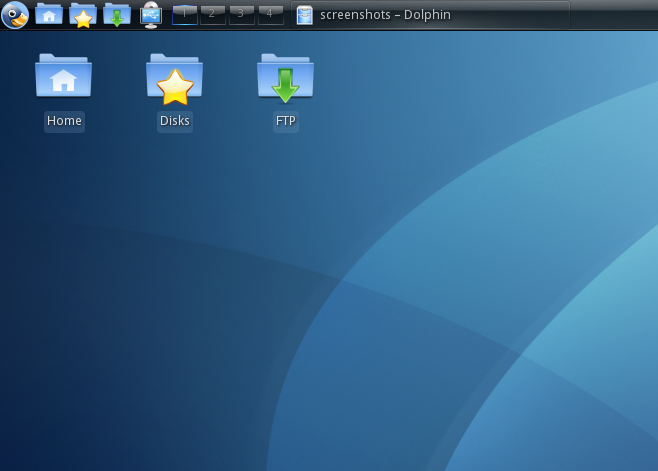
- network drive 'Home' which is used to store the users' personal files;
- network drive 'Disks' which is used to store public files;
- network drive 'FTP' which is used for a quick access to FTP (if the FTP server is configured)
Windows workstation
To join existing Windows clients to Calculate Directory Server domain, the procedure is as described below:
1. Open the System Configuration Utility (Start-> Settings-> Control Panel-> System), go to the tab "Computer Name" and click on Change...
2. A window will open, where you should flag "is a member of a domain", enter the NetBIOS name of the group which includes the domain server (it defaults to Calculate) and click on OK.
3. Then enter the username and the password. Type "admin" in the username field and enter the password that you specified for the admin user when you were configuring Calculate Directory Server.
If all is OK then you will see a message about joining the computer to domain. Congratulations! Now reboot the computer.
When you connect to the domain for the first time you may receive an error. In this case just try again: reenter the admin password.
Do not forget to specify your domain in the login window after rebooting the system.
When you log into the domain the following resources will be available:- network drive H which is used to store the user's personal files;
- network drive R which is used to store shared files;
- network drive T which is used for a quick access to FTP (if the FTP server is configured).
Working with a Windows terminal server
We skip configuring of Windows server. Join the server to the Calculate Directory Server like you do it for a Windows Workstation.
To run Windows applications in a CLD environment, some special attention will be needed.
For example, let us create a launching icon for Adobe Photoshop. The application must run in fullscreen mode without being overlapped by the top panel.
You can manage icons on the server. For this purpose create a file with the program icon in the template of calculate-client in the mounted var/calculate directory.
/var/calculate/remote/client-profile/always/.local/share/applications/photoshop.desktop
The file must contain the following:
[Desktop Entry]
Version=1.0
Name=Adobe Photoshop
GenericName=graphic editor
Comment=
Exec=/usr/bin/keyexec rdesktop "-s 'C:\\Program Files\\Adobe\\Adobe Photoshop CS3\\photoshop.exe' -d calculate -a 16 -g
#-hr_x11_width-#x#-sum(h,hr_x11_height-31)-# -T 'Adobe Photoshop' -S standard -zNDKE -p - winserver.localnet.org"
Icon=photoshop
Terminal=false
StartupNotify=true
Type=Application
Categories=Graphics;
Notes:
- Replace'winserver.localnet.org' with the name of your server.
- The Photoshop icon is the part of Calculate Linux Desktop.
- The size of window is computed by the sum [[templates|function], where 32 is the height of top panel.
- keyexec allows you to run applications with password stored in kernel keys
- If you prefer storing your 1C access password with the launching icon, use the load function to read and put the file's contents in the template.